Measuring
Open a drawing, check the scale, and use the count, area, and length tools to measure off it.
Measuring
Turn a PDF drawing into structured quantities the rest of the app can price. The whole loop is short: open a sheet, measure into a named item, bind that item to an assembly and spec, and you’re already on the path to a priced estimate line.
Step-by-step
Open a project and click the Takeoff tab to see the drawing register — every drawing in the project listed with its sheet number, scale, revision, and calibration status.
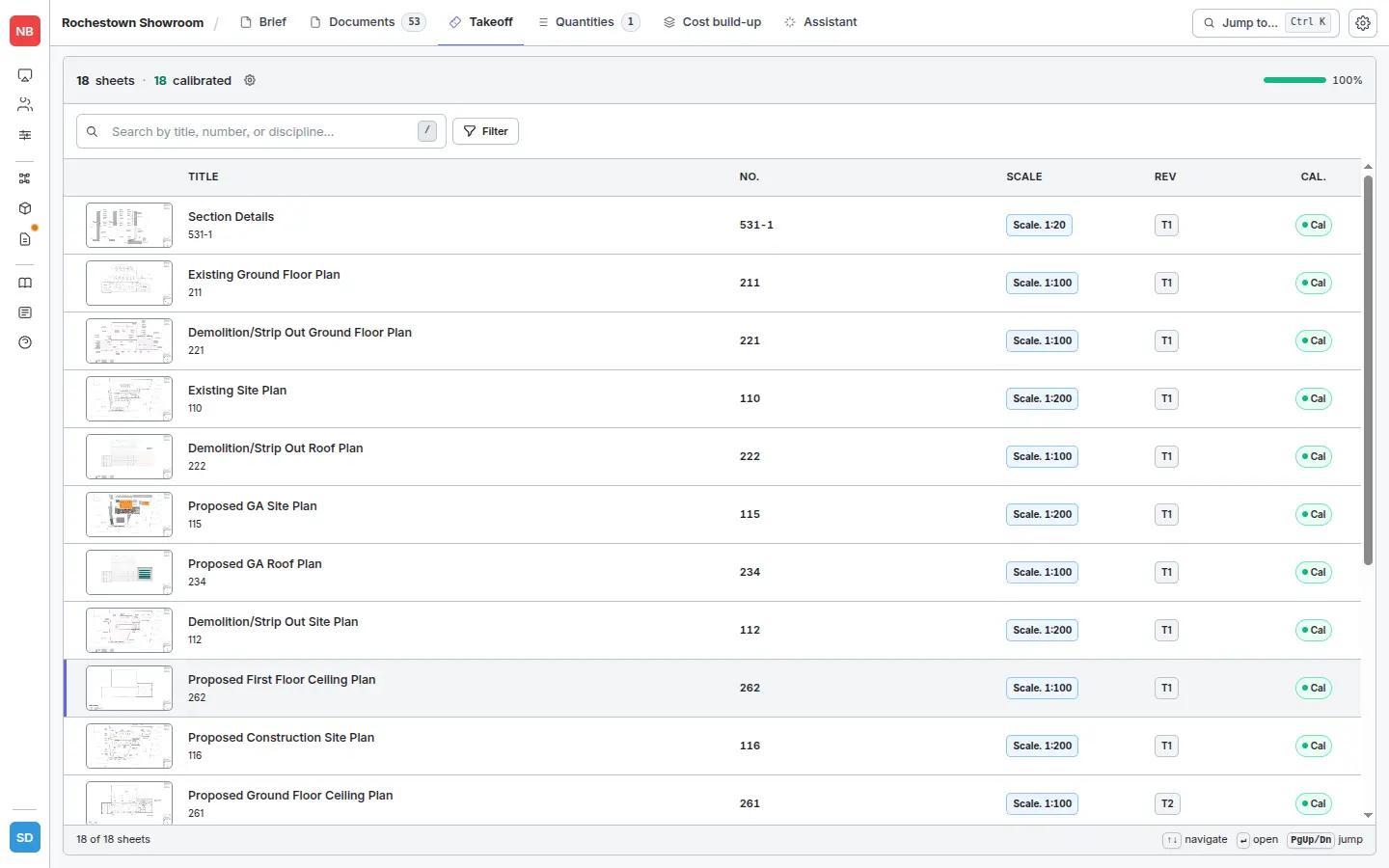
Click a drawing to open the takeoff viewer. The PDF fills the canvas; the items panel sits on the right, with the measurement toolbar across the top.
Check the scale. Blueprint Crusher auto-detects the drawing scale on import — you’ll see it pinned at the top of the canvas (e.g. Auto: Scale @A1 1:20). The drawing register’s CAL column confirms which sheets are calibrated. If a sheet wasn’t auto-calibrated, or you suspect the scale is wrong, recalibrate manually by picking two points of known distance and entering the real measurement.
Pick a tool from the toolbar and measure. Each shape you draw is added to the currently selected item in the panel.
- Count (
C) — doors, fixtures, fittings, sockets. - Length — pipework, skirting, kerbs.
- Area — slabs, walls, paint.
- Markup (
M) — non-measuring annotations.
Useful keyboard shortcuts run along the bottom of the canvas:
Clickto select,Deleteto remove,Ctrl+Z/Ctrl+Shift+Zto undo / redo,Spaceto hold-pan.- Count (
Create the item you’re measuring into. Click + Item in the top-right of the panel and choose:
- New Item — name it, optionally bind an Assembly (the costing recipe) and a Specification (compliance evidence) in the same dialog.
- From Worksheet — pull lines from an existing BOQ worksheet so your measurements feed straight back into them.
In the New Item modal, type a descriptive name and pick an assembly and spec in one go. Binding both up-front means the moment you drop your first shape onto the canvas, the item already knows what it costs and what spec governs it.
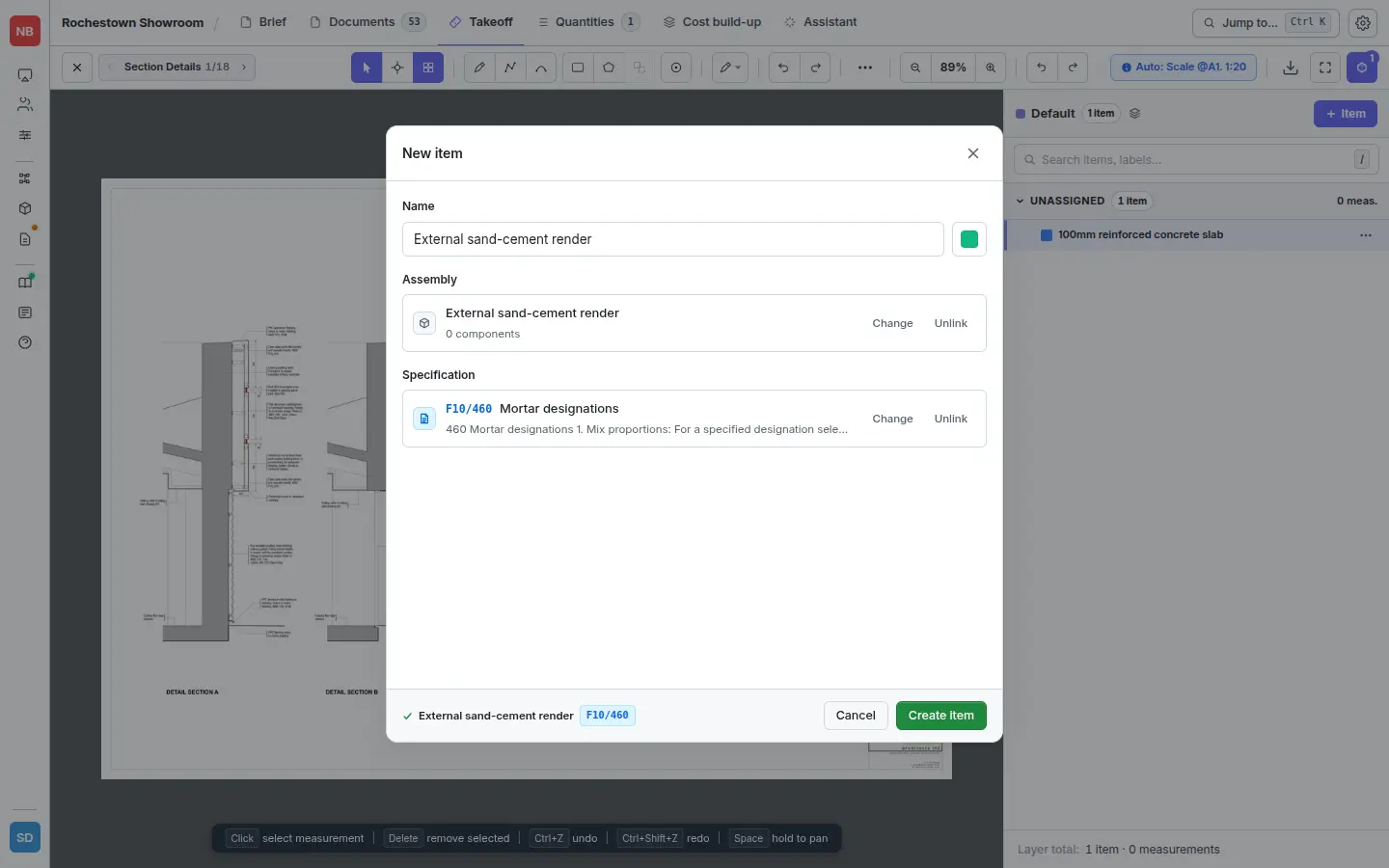
Click Create Item. The new item appears in the panel, ready to receive measurements. As you draw shapes on the PDF, the item’s measurement count and total quantity update live.
Why scale matters
If the scale is wrong, every measurement on that sheet is wrong. Auto-calibration is correct for the vast majority of sheets, but always glance at the Auto: Scale chip before you start measuring. If a single dimension on the drawing reads back wildly different from its annotated value, recalibrate.
What’s a takeoff item?
A takeoff item bundles related shapes so they can be priced as one line in your estimate. For example:
- All ground-floor slab pours → one item → one estimate line.
- All copper pipe runs on a level → one item → one estimate line.
- All internal doors on a floor → one item → one estimate line.
Once you’ve measured into items, you apply an assembly to compute the rate.