Reading the panels
Reference for the Summary, Specification, Issues, and Components tabs in the per-item rate builder.
Reading the Spec Intelligence panels
Every BOQ line in the rate builder has four right-side tabs. Each tab answers a different question.
Summary
“Do I have enough information to price this item, and what is the AI’s overall read of it?”
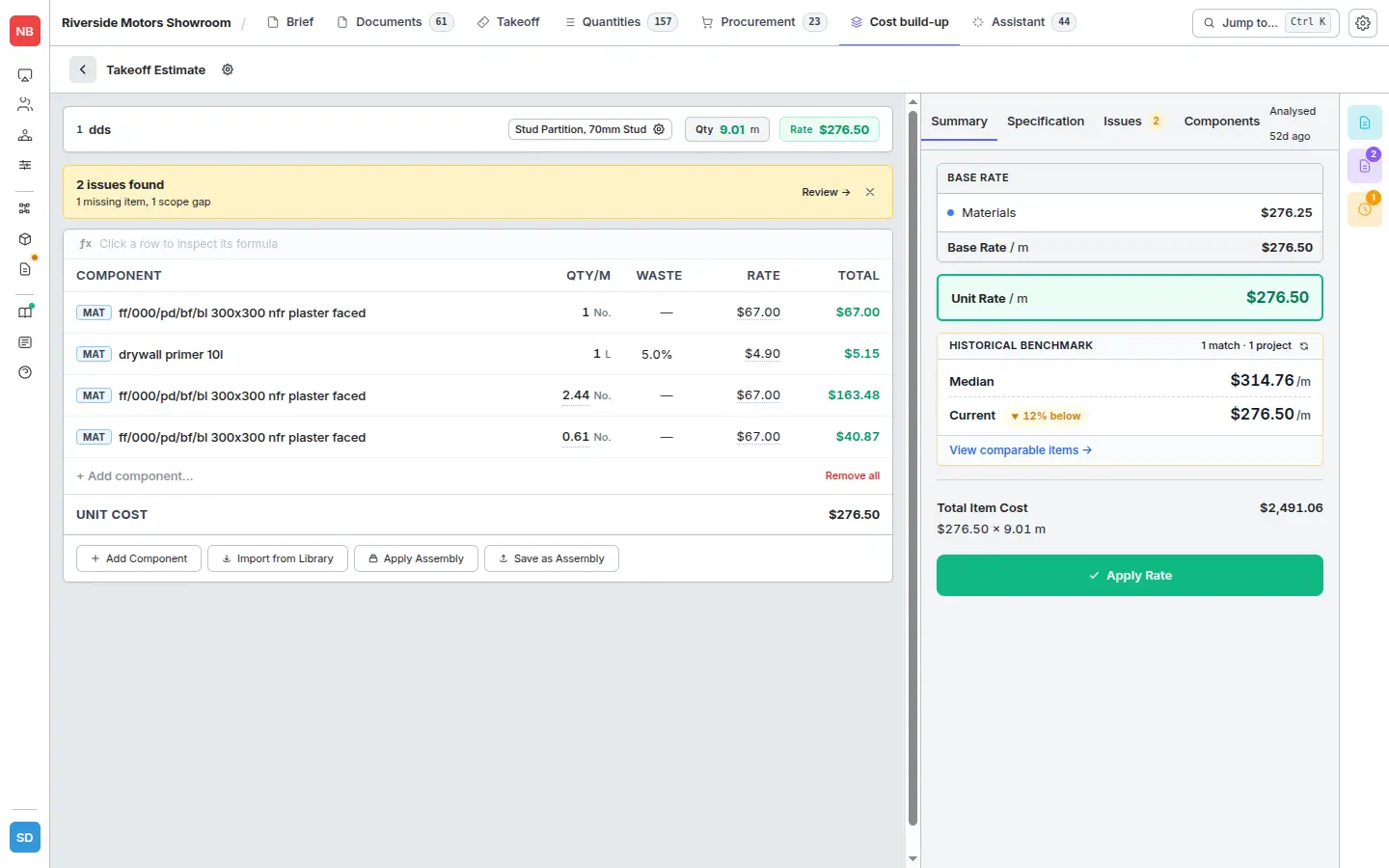
The Summary tab shows the Unit Rate as it stands, a Historical Benchmark against comparable items you’ve priced before, and — once analysis has run — the context quality for the item:
- good — the spec gives a clear, unambiguous description of what’s required.
- fair — most of the picture is there but some detail is implicit or scattered across clauses.
- poor — the spec mentions the item but doesn’t pin down enough to price it confidently.
- no spec — the analysis found nothing in the linked specs that matches this item.
Treat poor and no-spec items as flags: they need a query to the design team or a defensible assumption before you commit to a number.
Specification
“What does the spec actually say about this item?”
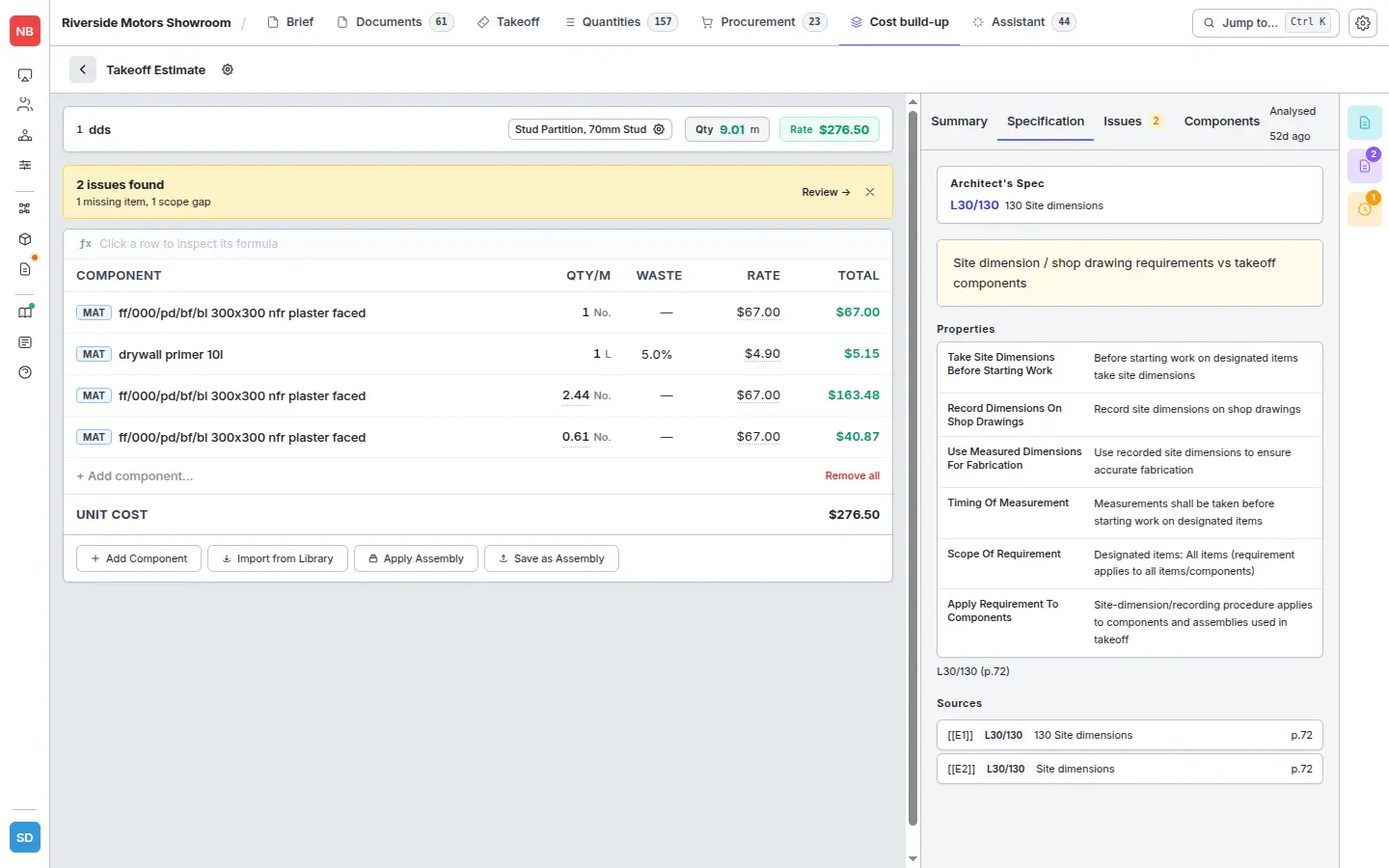
The Specification tab lists every property the AI extracted for the item — block thickness, concrete grade, finish, fixing centres, etc. — as a label/value pair. Each property has one or more sources: the clause reference (e.g. F10/460) and the matched source text, so you can verify it without leaving the rate builder.
Extracted clause references that the analysis couldn’t tie back to a real clause in your linked documents show up as unresolved — they’re called out separately in the Issues tab.
When no specification document is linked, the tab shows a No spec linked empty state. Upload an NBS-style PDF under the Documents tab and re-run analysis (see How it works).
Issues
“What’s wrong, missing, or ambiguous — and does it change the price?”
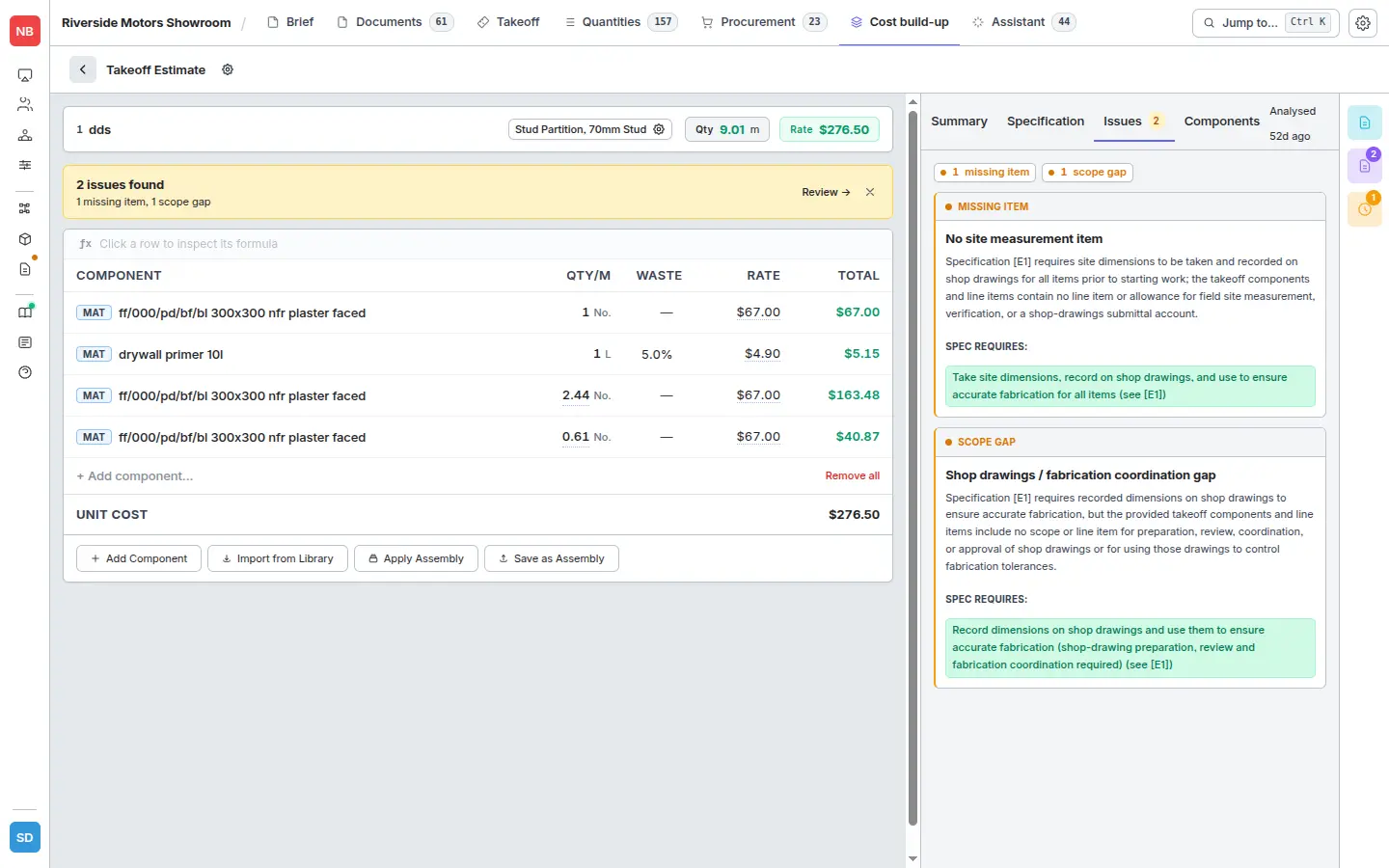
The Issues tab flags every problem the analysis found for this item. Each issue is one of:
- Unresolved reference — the BOQ or spec cites a clause that couldn’t be located in the linked documents.
- Discrepancy — the BOQ description and the spec disagree on a property (e.g. “100mm block” in the BQ vs “140mm block” in the spec).
- Clause ref mismatch — the clause reference in the BQ doesn’t match the section it appears to describe.
- Missing item — the spec calls for something that doesn’t appear in the BOQ at all.
- Scope gap — a piece of work is implied but not pinned down anywhere.
Every issue carries:
- A severity (warning or critical).
- An estimated impact in your project currency, low to high — how much price uncertainty this issue is responsible for.
- A pricing basis of
spec,boq, orunclear— which document should govern the rate. - A requires query flag. When true, raise an RFI to the design team before locking the rate; the AI doesn’t think there’s enough on file to price it cleanly.
Components
“What does this item actually break down into?”
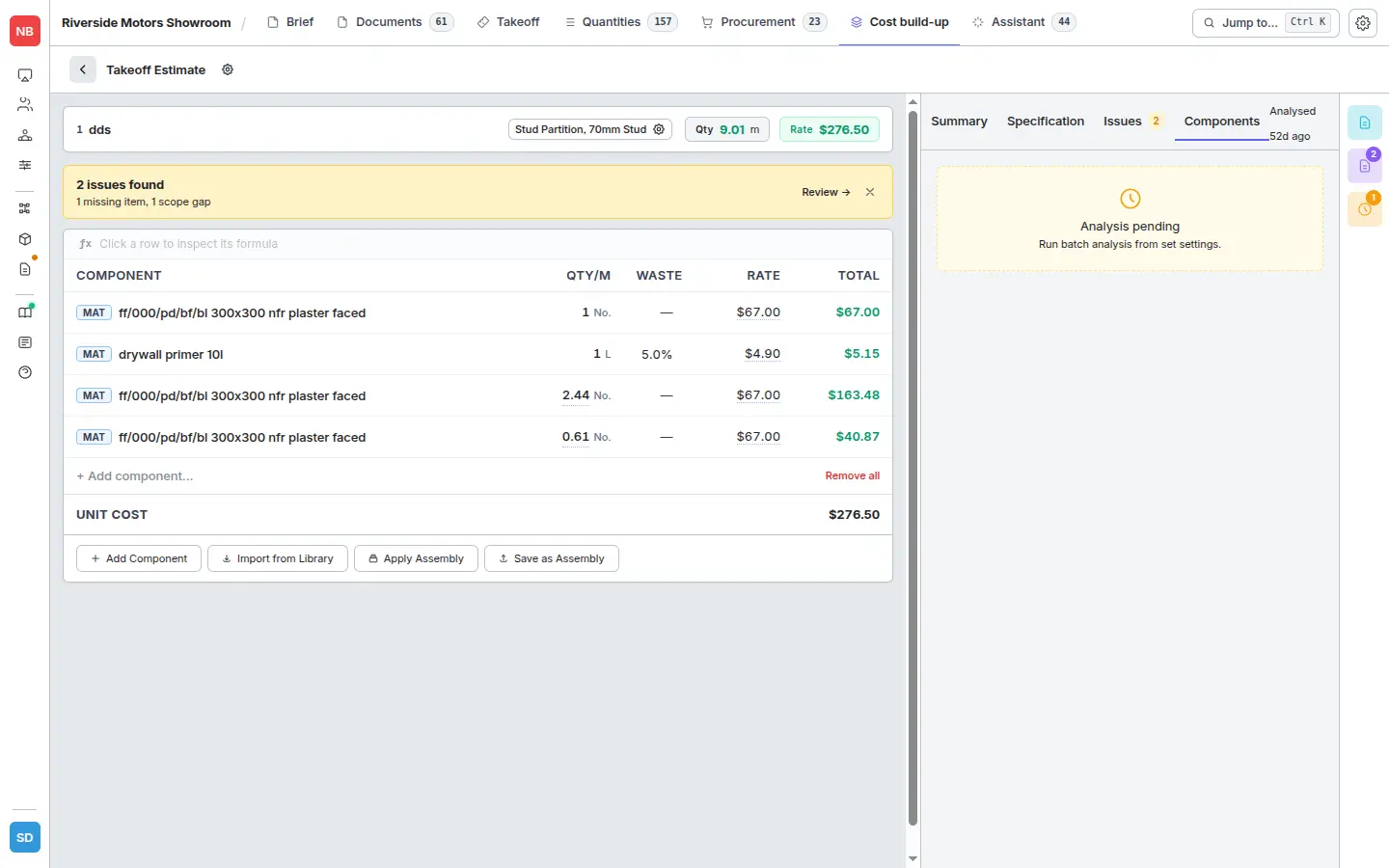
The Components tab shows the AI’s suggested decomposition of the item into priceable components: material, labour, plant, waste allowances and so on, each with the spec evidence behind it.
You can promote a suggested decomposition into the actual rate using the rate builder’s + Add Component or Import from Library actions. If the breakdown is one you’ll reuse across projects, save it as an Assembly so future tenders pick it up automatically.
Before batch analysis has been run, this tab shows an Analysis pending message — run Spec Intelligence from the document settings (see How it works) to populate it.