How it works
Upload a specification document, run Spec Intelligence on a BQ, and review the per-item output.
How Spec Intelligence works
End to end, you upload a spec, run analysis once at the document level, then review the output one BOQ item at a time.
1. Upload the specification document
Open the project’s Documents tab and upload the tender specification — typically an NBS-style PDF — using the standard upload dialog.
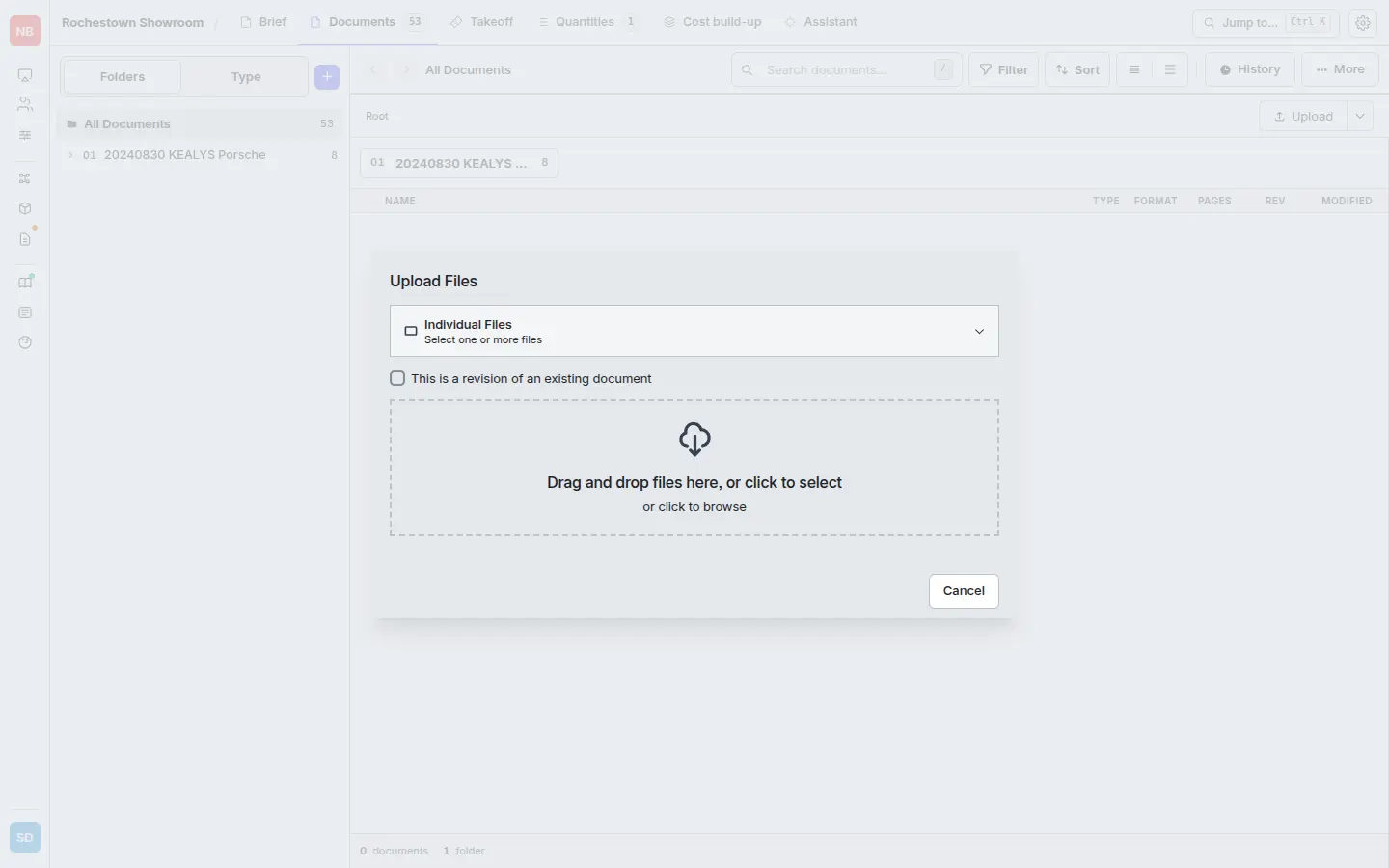
Mark the document as a specification so Spec Intelligence knows to treat it as a source of clauses rather than a drawing or price sheet. You can link multiple spec documents to the same project; they’re all searched together.
2. Open the rate builder for a BQ
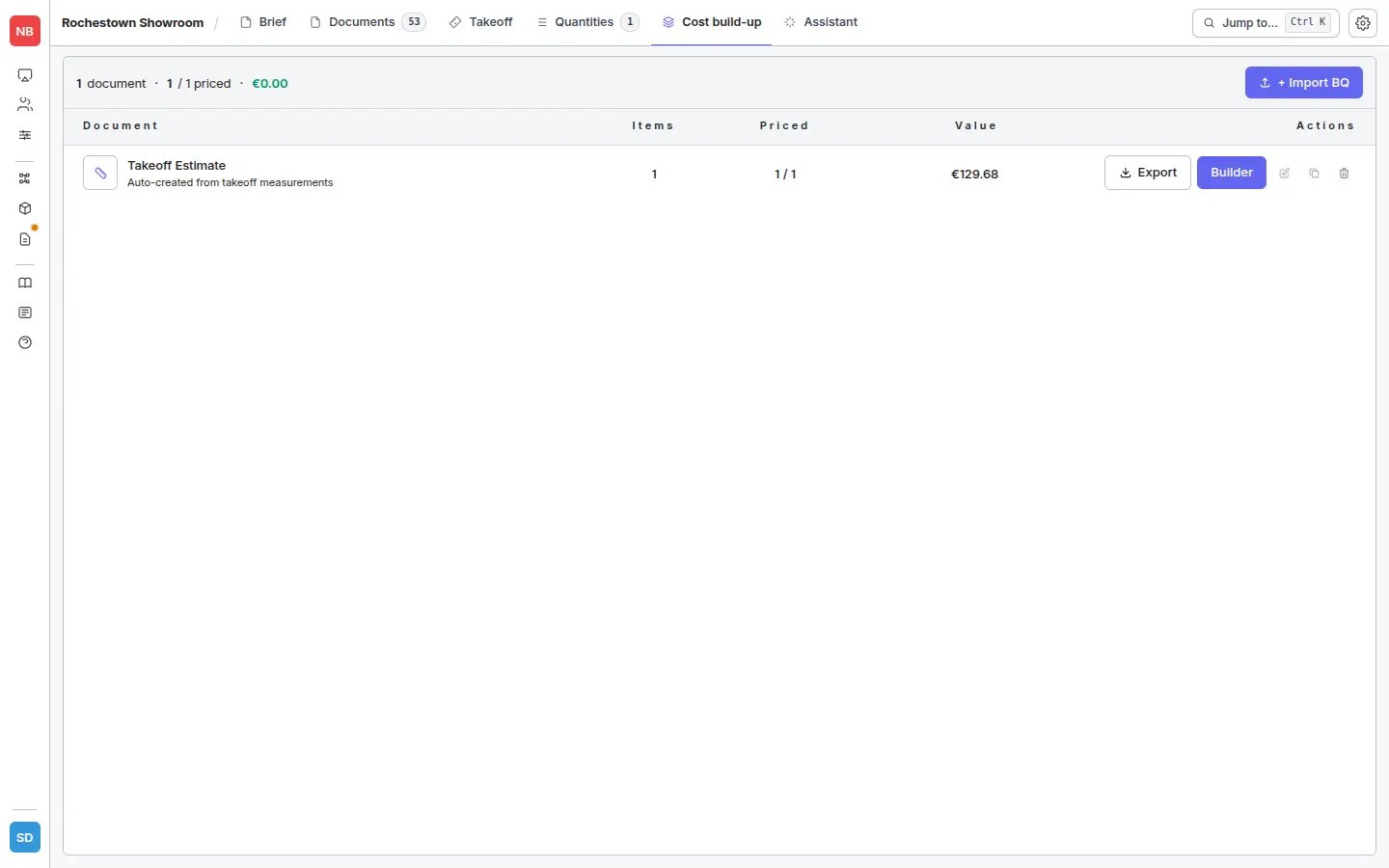
Switch to the Cost build-up tab on the project and click the Builder button on the row for your BQ.
3. Run Spec Intelligence on the document
Open the document settings (the gear icon next to the document name) and, under the Spec Intelligence section, click Run Spec Intelligence.
The job analyses every set and item in the BQ against the linked spec documents. Progress shows live as X / N sets. Each set moves through pending → queued → processing → completed (or no_spec if nothing in the spec matched). If no specification documents are linked to the project the run is skipped — go back to step 1.
4. Review per item
Click Build rate on any BQ line to open the per-item rate workspace. The right-hand side surfaces four Spec Intelligence tabs — Summary, Specification, Issues, and Components. The Specification tab below shows extracted properties and clause references for a Metal stud partition line:
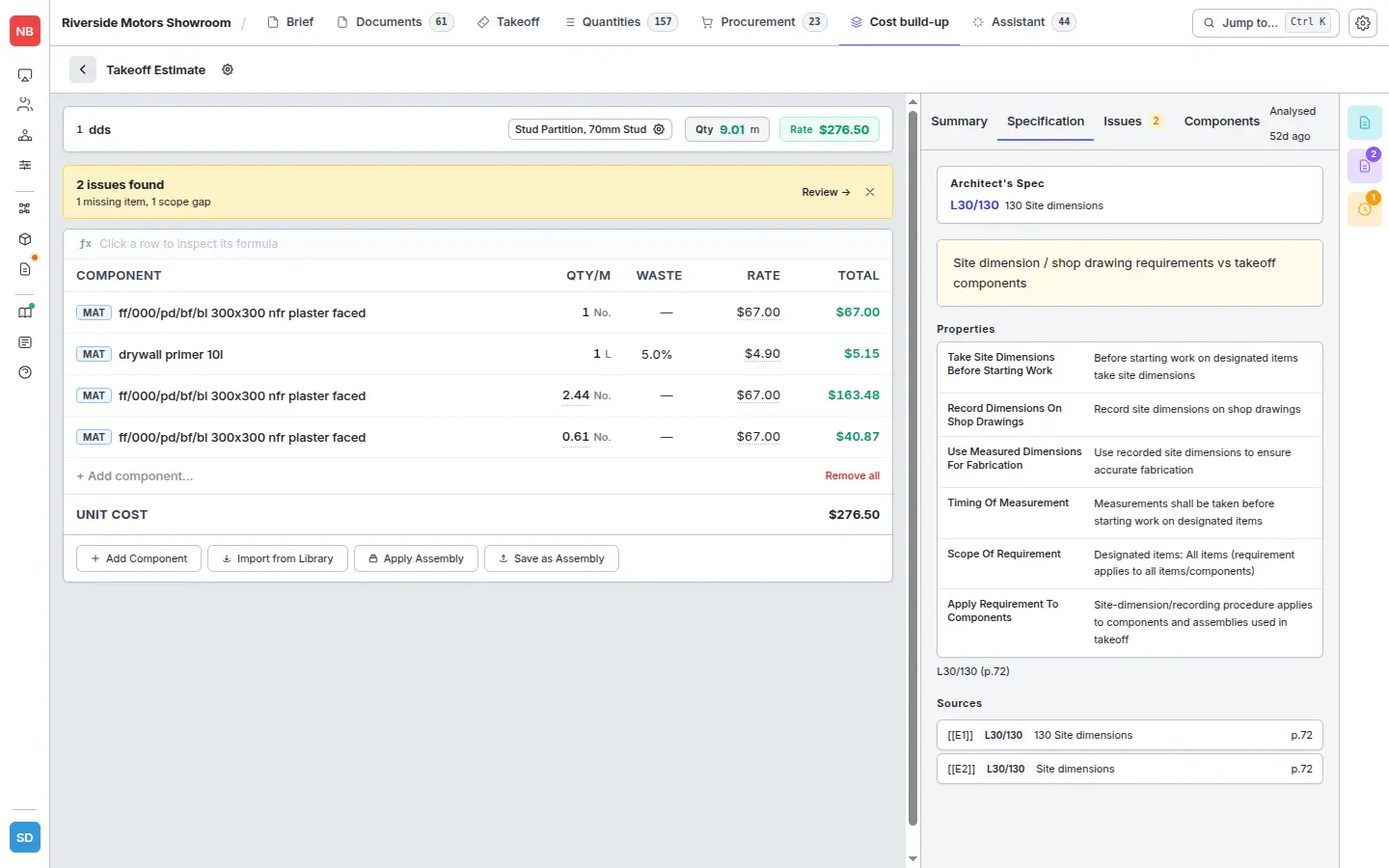
See Reading the panels for what each tab is telling you and how to act on it.
Re-running
If you upload a revised spec mid-tender, run Spec Intelligence again from the same document settings panel. The analysis replaces the previous result for every item in the document.