Prices
Recording supplier prices, pack vs. unit, editing rules, and preserving history.
Prices
A product can have many prices — one per supplier, per effective date. Every price you’ve ever entered is kept, so you have a full history and can see how a product’s cost has trended over time.
The product detail page
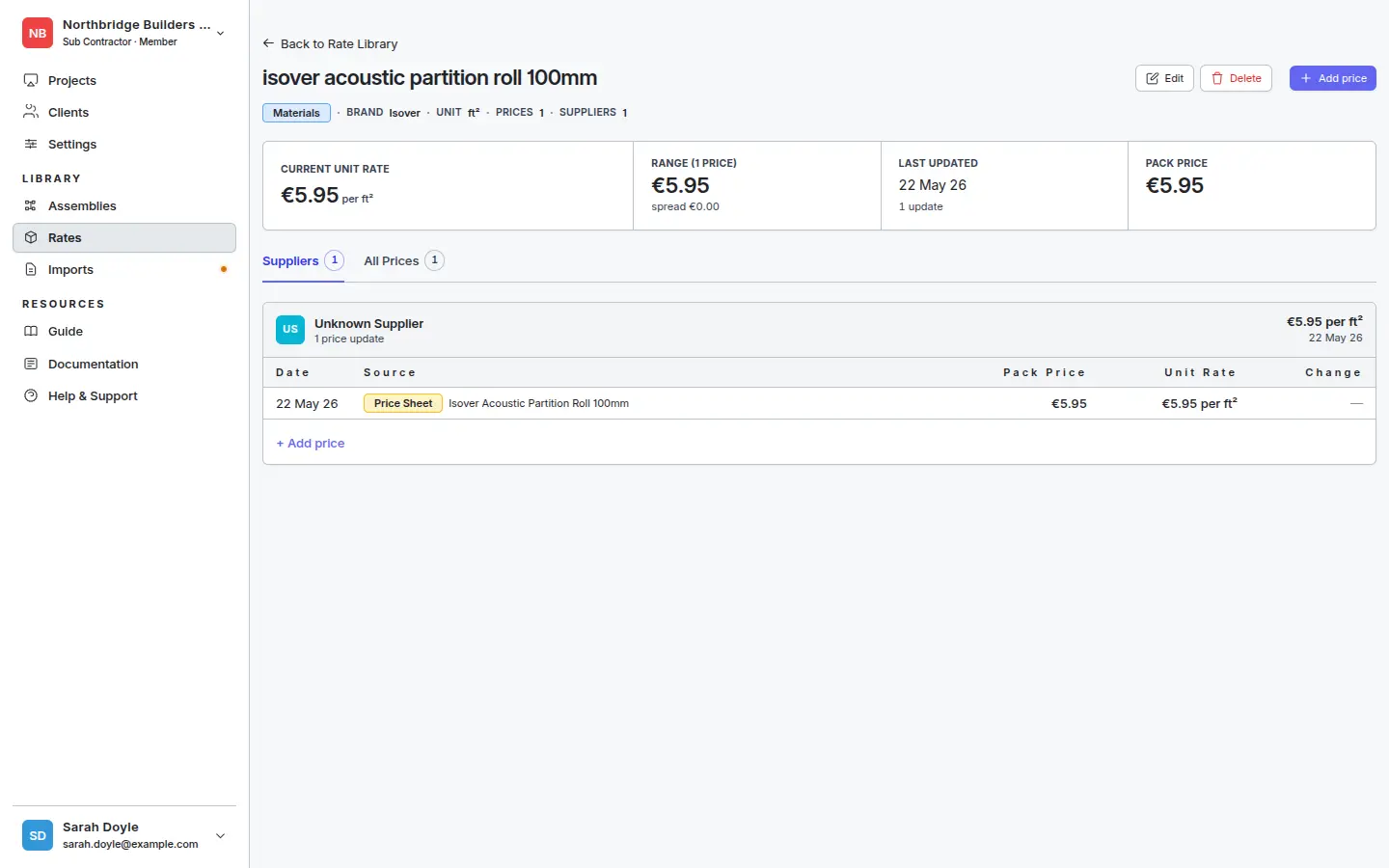
Click any product on the Rates list to open its detail page. The header shows the current unit rate, the spread across suppliers, the last-updated date, and the pack price; the body splits into a Suppliers view (one card per supplier with their price history) and an All Prices view (one flat list).
Adding a price
Click + Add price in the top-right (or + Add price at the bottom of a supplier card to attach an entry to that supplier directly). The modal opens pre-scoped to the product you’re on:
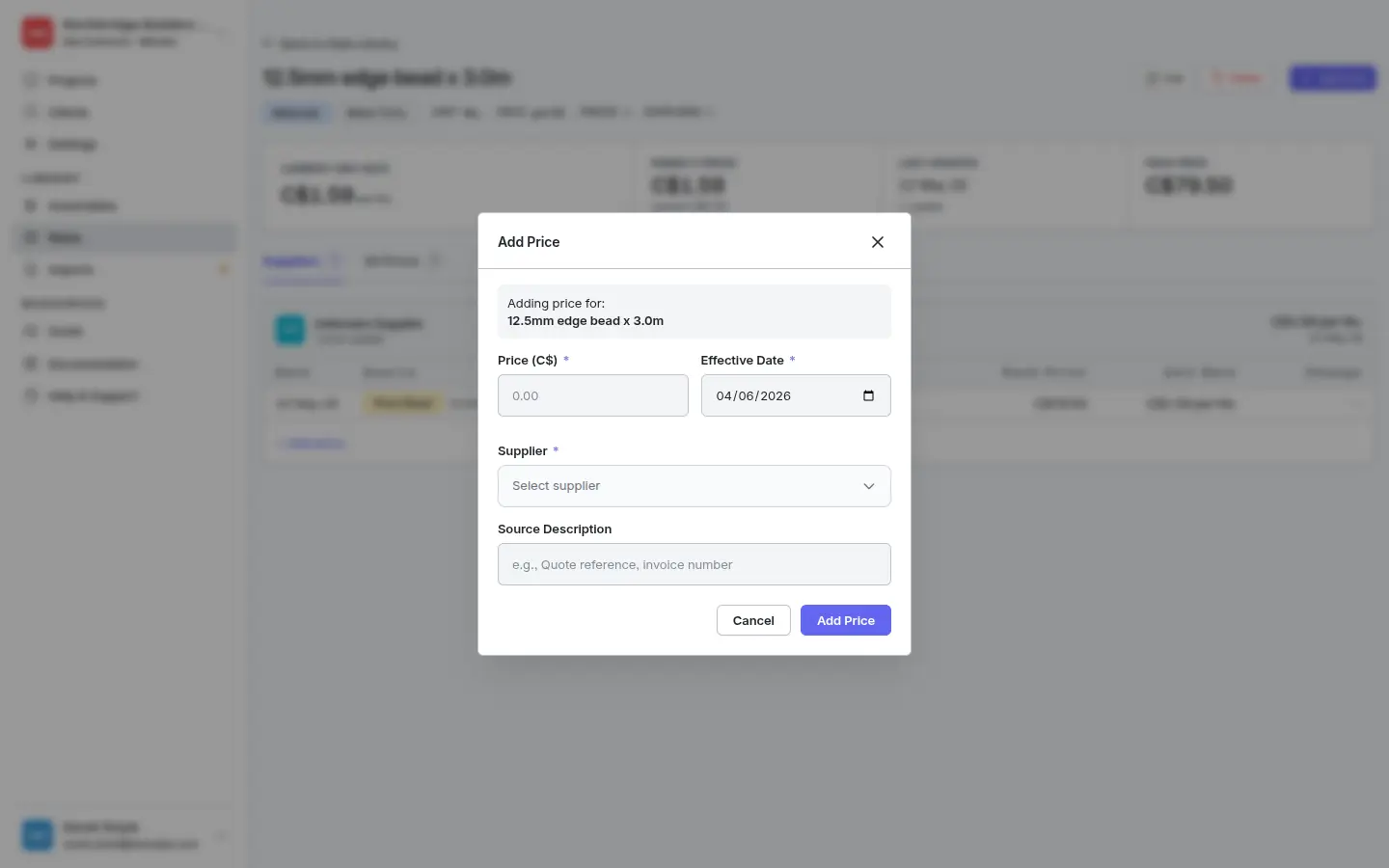
Fill in:
- Price — what you actually pay for the pack (e.g. C$79.50 for a box of 50). The unit rate is computed for you as
price ÷ pack qtyand is the figure that flows into estimates. - Effective Date — when this price became valid. Use the date on the quote or invoice, not today.
- Supplier — required. Each price is tied to one supplier so you can compare.
- Source Description (optional) — a quote reference or invoice number to make the price traceable later.
- Price — what you actually pay for the pack (e.g. C$79.50 for a box of 50). The unit rate is computed for you as
Click Add Price. The new row appears on the supplier card and the header figures update.
Pack qty and Purchase UOM are set on the product itself (under More details on the product modal), not per-price — they describe how the product is sold and stay consistent across suppliers.
Editing and deleting
- Click any price row to edit it. Editing updates the existing record in place — use it for typos.
- To record a price change, add a new price rather than editing the old one. This preserves the history and the trend line.
- Deleting a price is permanent and removes it from history. Avoid unless the price was entered in error.