Importing Price Sheets
Upload supplier spreadsheets and turn them into priced products with vision AI.
Importing Price Sheets
The fastest way to populate your Rate Library is to import a supplier’s price list. The system uses vision AI to read the sheet, pull out items, packs, and prices, and group them into subcategories.
Uploading a sheet
Open Library → Imports in the sidebar. The page lists every price sheet you’ve uploaded with its status (Pending, Processing, Partially Committed, Committed).
Click + Upload Price Sheet in the top-right. The upload modal opens:
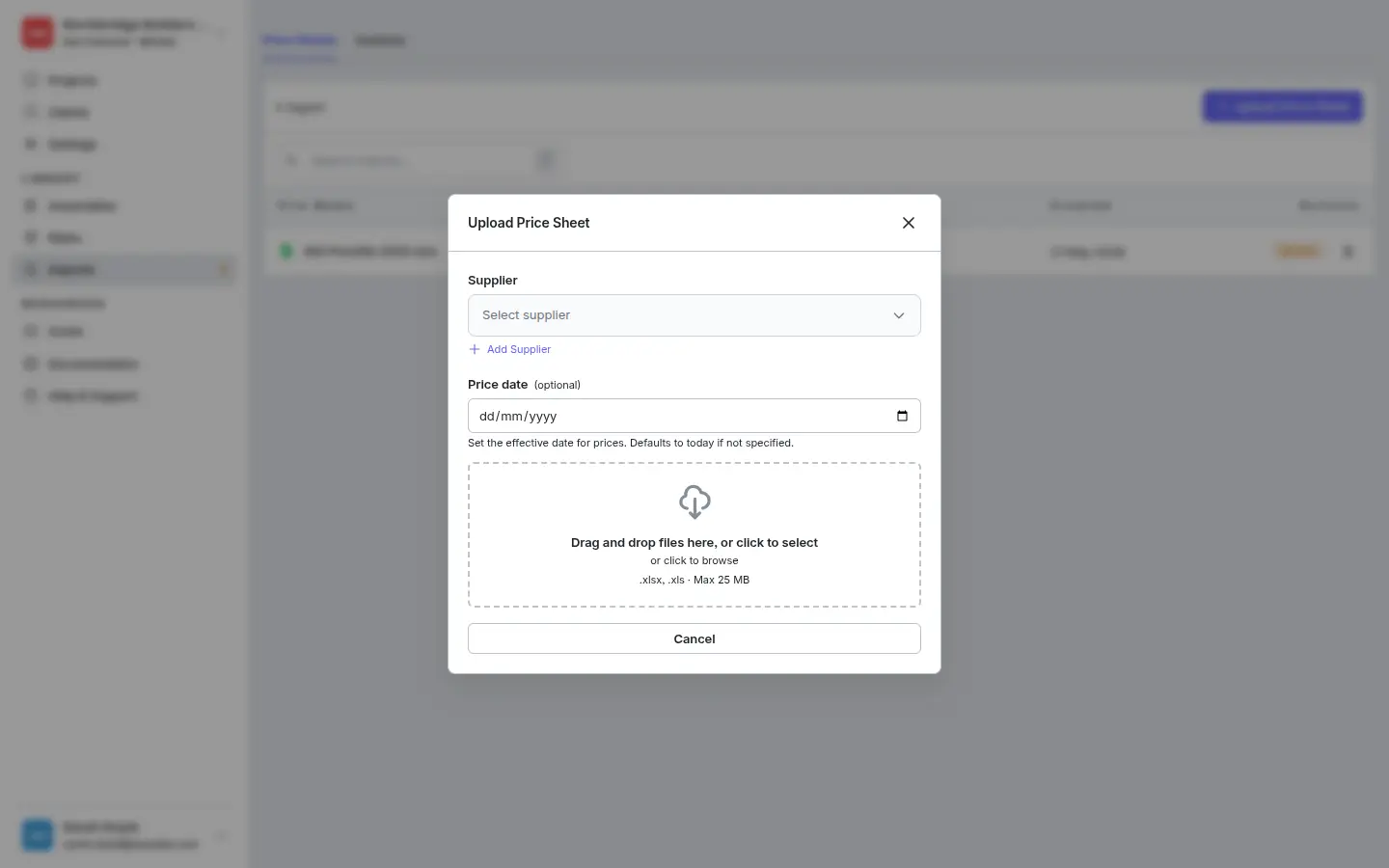
Pick the Supplier. If they’re not in the list yet, click + Add Supplier to create one inline without leaving the modal.
Set the Price date (optional) — the effective date stamped on every price imported in this batch. Leave it blank to default to today. Setting it correctly is what gives you a clean price history when you re-import later.
Drag-and-drop the file into the dropzone, or click to browse. Accepts
.xlsxand.xlsup to 25 MB. Multi-tab workbooks are fine — each tab is read in turn.The upload starts immediately and the import appears in the list in a processing state. Extraction takes roughly 30–90 seconds per page; you can leave the page and come back when it’s ready.
Reviewing the extraction
When extraction finishes, the import row shows a Review action. Click it to open the Review screen. The filter pills along the top let you focus on a single status — switch to Committed to see what has already been written through to your library:
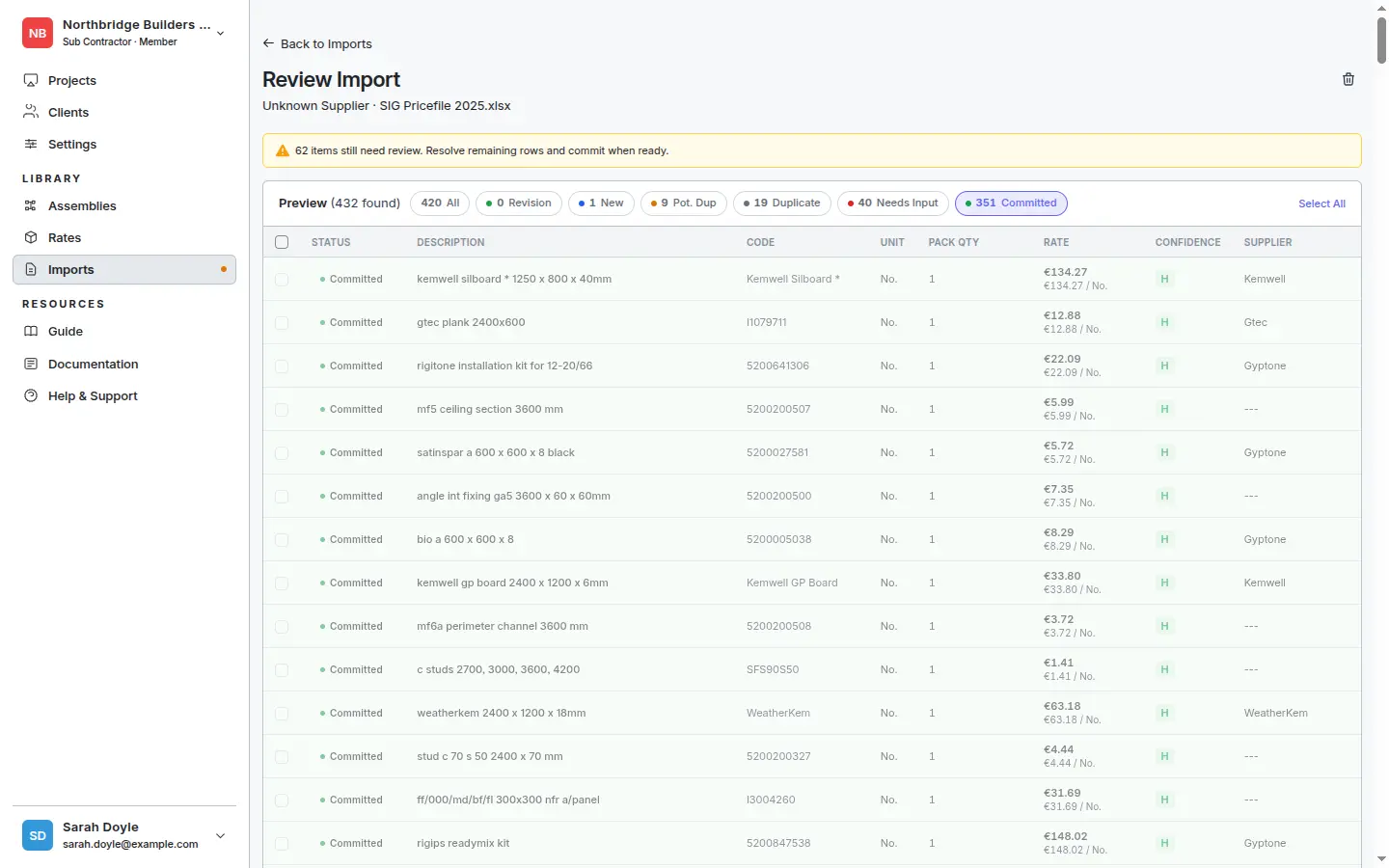
The statuses are:
- New — looks like an item you don’t have yet. Will create a fresh product and its first price on commit.
- Needs Input — the AI is unsure about something (often pack qty or purchase UOM). Confirm or correct the row before you can commit it.
- Pot. Dup — potential duplicate of another row in the same import (e.g. same item under a slightly different code).
- Duplicate — looks like a product you already have. Will add a price to the existing product on commit, preserving history.
- Revision — the row updates an existing import row.
- Committed — already written through to your Rate Library.
For each row that isn’t committed yet, check:
- Description, code, and pack — make sure the parsed values match the sheet. The Pack Qty column drives the unit-rate calculation, so a wrong pack here will make every downstream estimate wrong.
- Rate — sanity-check obvious outliers. The Confidence column flags rows where the AI is less certain (an
Mbadge means medium confidence). - Status — for Needs Input and Pot. Dup rows, the inline note tells you what to confirm. Click the row to fix the field and clear the warning.
When you’re happy with a batch of rows, click Commit at the top. Matched rows append a new price to the existing product; new rows create both the product and its first price. You can commit in batches — partially committed imports stay in the list so you can come back to finish.
Tips and gotchas
- Re-importing a newer sheet for the same supplier adds new prices with the new effective date — old prices are kept and visible in the product’s price history. You don’t need to delete the old import.
- Fix mistakes in the review screen, not by re-uploading. Manual corrections take seconds; re-extraction takes minutes.
- Wildly off prices (e.g. C$4500 instead of C$45.00) are usually a missed decimal. Always sanity-check rows with low confidence before committing.
- Unknown supplier — if the review screen shows “Unknown Supplier” in the header, set the supplier on each row (or on the import itself) before committing so the prices are attributed correctly.