Applying Assemblies in the Rate Builder
How to compute a single estimate line's rate from an assembly when filling in an estimate by hand.
Applying Assemblies When Building a Rate
This is the workflow when you’re filling in an estimate by hand and want to use an assembly to compute one line’s rate. (For applying assemblies to measured takeoff groups, see Applying assemblies in takeoff.)
Step-by-step
Open the project’s Cost build-up tab, open a BQ document’s Builder, then switch to the Rates sub-tab. Click Build rate on the row that needs a rate.
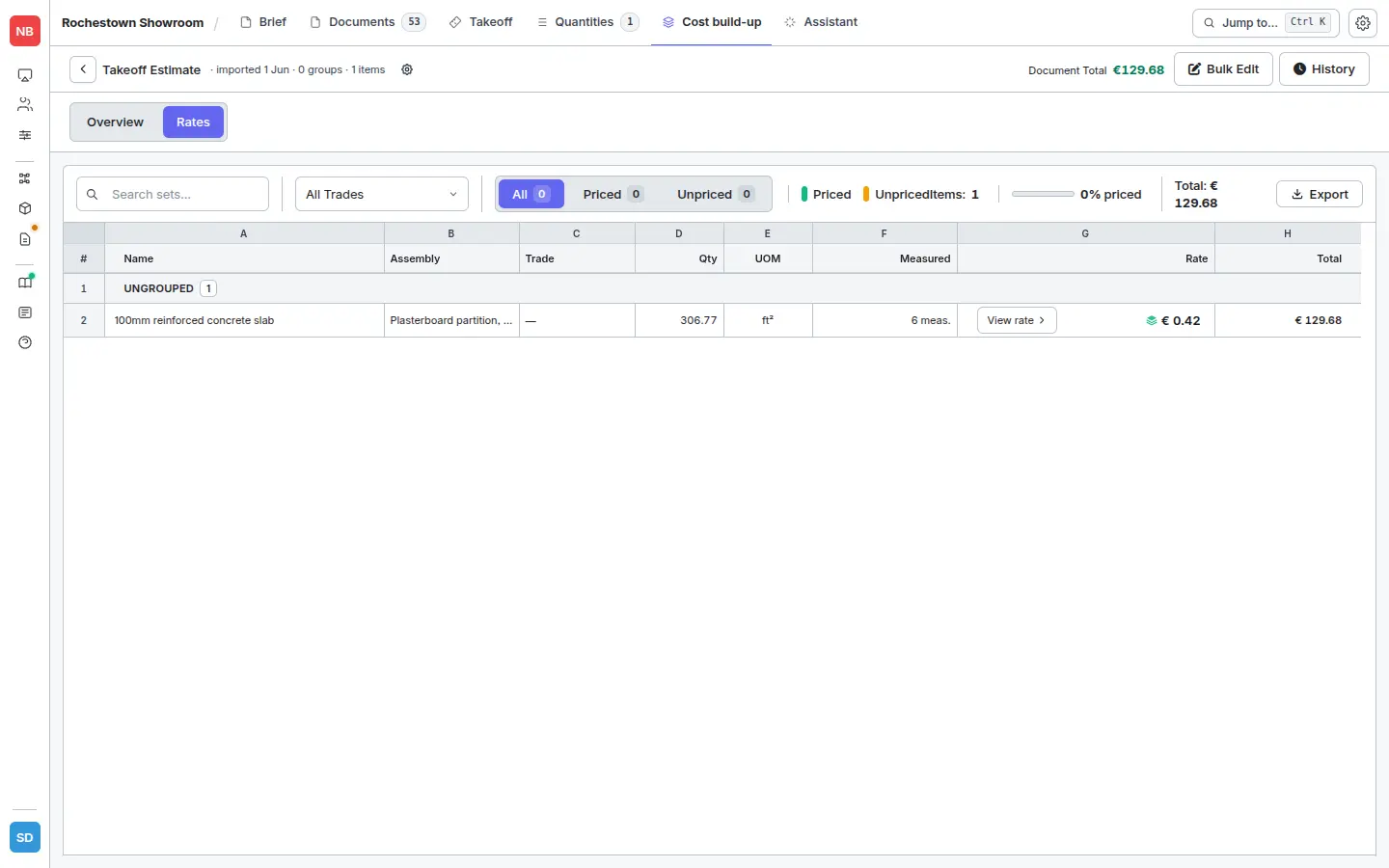
The per-item Rate Builder workspace opens, with the line description on the left and the unit-rate summary on the right.
Under Build your rate, click Apply Assembly.
The Apply Assembly picker opens. It contains:
- A category filter and a search box at the top.
- Suggested for this item — AI-ranked matches based on the line description and trade.
- All assemblies — every assembly in your library (including any system templates you’ve adopted), with their output UOM, component count, and variable count.
Pick an assembly. The Apply assembly button at the bottom-right enables.
Set variables — if the assembly uses variables, inputs appear with their defaults pre-filled. Override any that don’t match this job (e.g. set
block_thickness_mmto140).Apply assembly. The composite rate is written to the line, and the full component breakdown is saved with it.
The result
After applying, the workspace fills in: a computed unit rate on the right, and the materials/labour/equipment breakdown on the left — one row per assembly component, each showing the quantity, unit, supplier rate, and total.
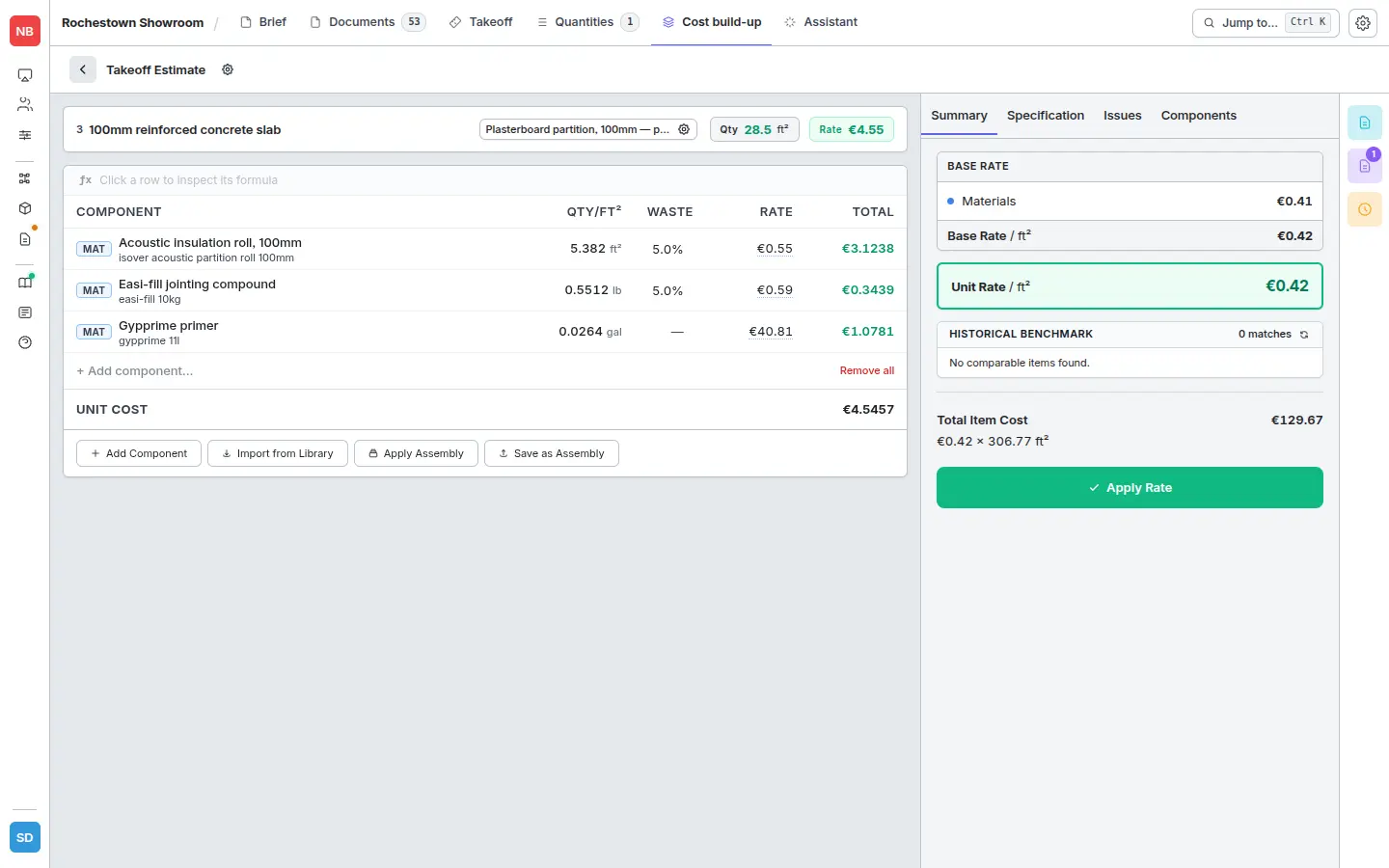
That composite rate is now the line’s unit rate. Re-open the line later to see exactly which products and quantities produced it.
What gets replaced
If the line already has components, applying an assembly replaces them. The previous build-up isn’t recoverable, so confirm you’re on the right line before applying.